.webp?width=200&height=63&name=2025-09-22_Openlight%20Media%20Help%20Desk%20Logo%20(1).webp)
As a group administrator on the new platform, you have three flexible ways to add users to your group. Choose the method that works best for your situation.
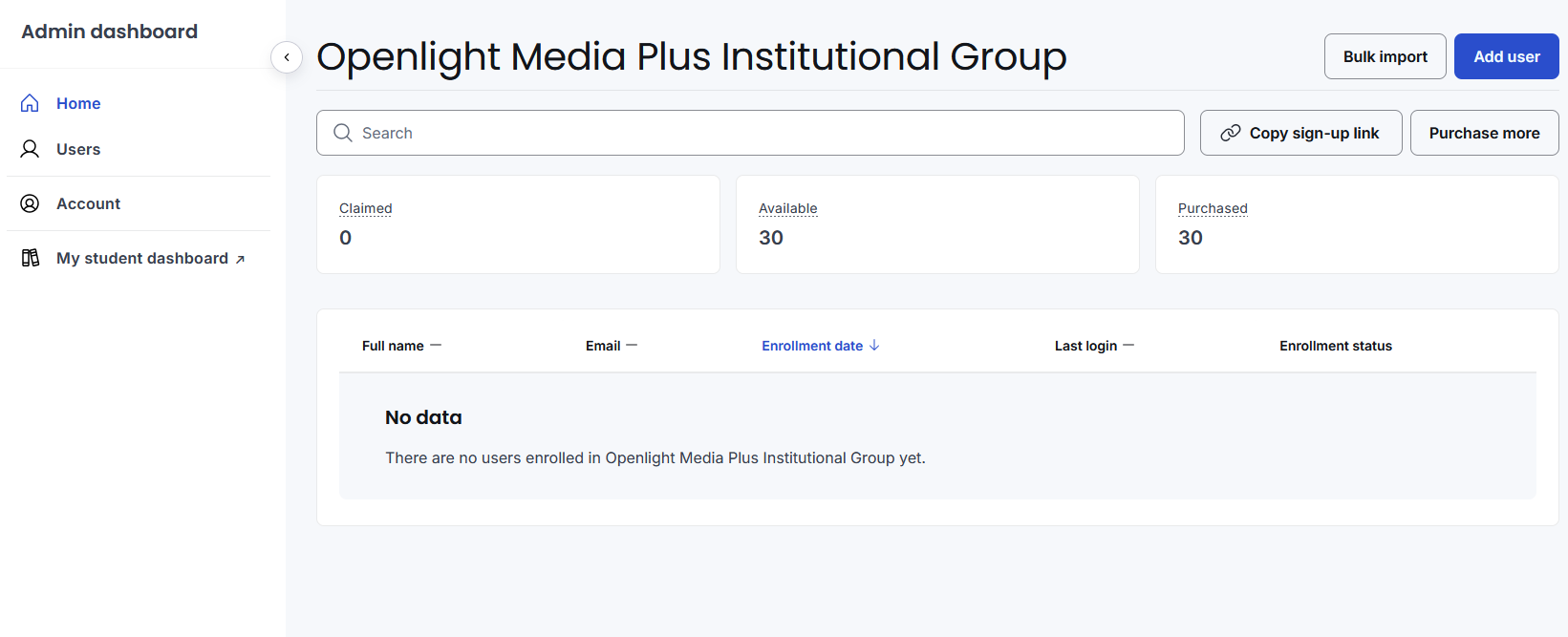
Method 1: Let Users Self-Join (Recommended)
The easiest way to add users is to have them sign themselves up — no admin work required on your end.
How it works:
Simply share this link with your users:
https://openlightmedia.com/join-my-plus-group/
Direct them to follow the sign-up instructions to find your institution by postal code and join your group. They'll complete their own registration, and they'll automatically be added to your group with access to your subscription content.
Tip: This is the fastest and most efficient method, especially for groups with many users. Share the link via email, staff bulletin, or your institution's communication channels.
2: Add Single Users Manually
If you need to add just one or two users, or if you prefer to invite them individually, use the Add User button in your group settings.
How it works:
- Click the Add User button in your group's admin panel
- Enter the user's first name and last name
- Enter their email address
- Submit the form
An invitation email will automatically be sent to the user, prompting them to complete their sign-up. Once they finish setting up their account, they'll be added to your group.
Note: Users need to accept the invitation and complete the sign-up process before they gain access to group content.
Method
3: Bulk Import with CSV
For larger groups or when adding many users at once, use the Bulk Import feature to upload a spreadsheet of users all at once.
How it works:
- Click the Bulk Import button in your group settings
- Click Download CSV Template to get the blank template file
- Fill out the template with your user data, following the instructions listed in the template
- Typically includes columns like first name, last name, email, and possibly role or grade level
- Upload the completed CSV file back to the platform
- Review the data on the confirmation screen to ensure all information is correct
- Click Import to add all users at once
All added users will receive an email notifying them that they've been added to your group and directing them to set up their account and access the platform.
Tips:
- Double-check spelling and email addresses in your spreadsheet before uploading — this prevents sign-up issues
- Make sure you're using the exact CSV template format provided; different column layouts may cause import errors
Need Help?
If you have questions about adding users, encounter issues during the import process, or need assistance managing your group, our support team is here.
- Contact Us: https://openlightmedia.com/contact-us/
- Email: customerservice@openlightmedia.com